
1. What Is a WebP File and Who Developed It?
To understand what is a webp file, it helps to look at the history of the web. For the first two decades of the commercial internet, digital media relied almost entirely on three legacy file types: JPEG (created in 1992 for photographs), GIF (created in 1987 for simple animated graphics), and PNG (created in 1996 for lossless transparency). While each format served its original purpose well, none was designed for the high-speed mobile internet, retina displays, or strict data budgets of modern devices.
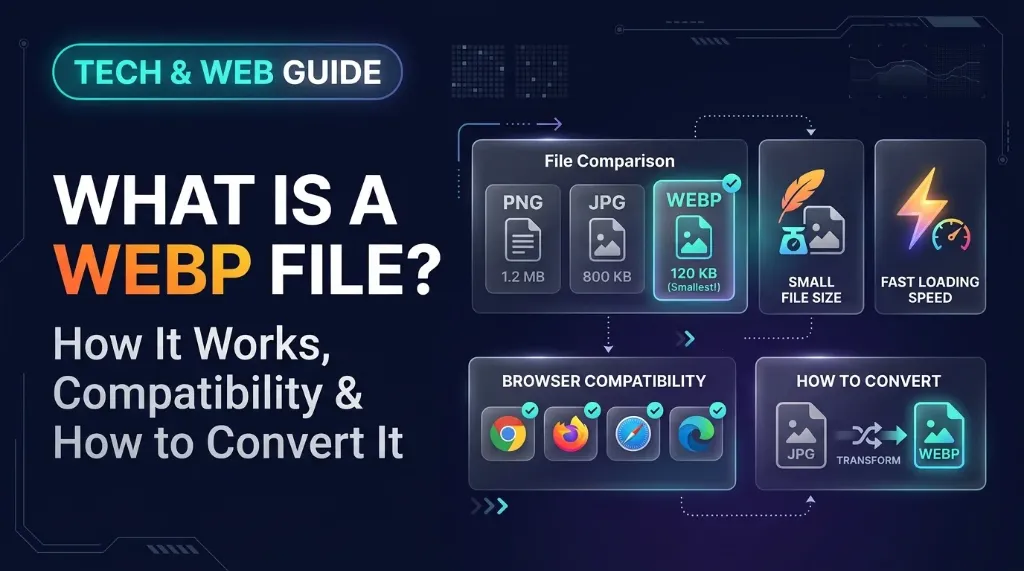
Recognizing that unoptimized images accounted for more than 60% of total web page weight, Google introduced the WebP format in September 2010. Google designed WebP as a royalty-free, open-source standard with a single mission: reduce image byte sizes across the web so pages load faster, mobile users consume less data, and servers handle traffic more efficiently.
Technically, a WebP file uses the Resource Interchange File Format (RIFF) container structure, identified by the .webp file extension and the MIME type image/webp. Inside that container, the image data is powered by technology derived from the VP8 and VP8L video codecs originally developed by On2 Technologies (which Google acquired in 2010). By applying advanced predictive video compression techniques to still photography, Google succeeded in creating a versatile format capable of handling photos, logos, transparent graphics, and animations in a single unified standard.
2. How the WebP Image Format Works
The secret behind the efficiency of what is a webp file lies in spatial predictive coding. Traditional image formats like standard JPEG process an image by dividing it into rigid 8x8 pixel blocks and applying mathematical transformations (the Discrete Cosine Transform) across each block independently. This approach often introduces visible blocky artifacts or color banding when an image is compressed heavily.
In contrast, WebP uses predictive coding similar to modern video compression algorithms:
- Macroblock Partitioning: The encoder divides the picture into larger segments called macroblocks (typically 16x16 pixels for luminance data and 8x8 pixels for chrominance data).
- Predictive Modeling: For each macroblock, the encoder analyzes neighboring pixel blocks that have already been decoded (to the left and above the current block). It predicts the pixel values of the current block using one of several spatial prediction modes, such as horizontal, vertical, DC (average color), or true motion.
- Difference Residuals: Instead of storing the full color information for every pixel in the block, the encoder calculates the residual: the subtle difference between the predicted pattern and the actual picture.
- Quantization and Entropy Coding: The residual difference is quantized to discard imperceptible noise, and the resulting data is packed tightly using arithmetic entropy coding. Because the mathematical residual contains far less raw data than the original pixel grid, the final file takes up significantly less disk space.
This predictive approach allows WebP to retain smooth gradients, clean edges, and sharp facial features even at aggressive compression levels where an equivalent JPEG would look visibly pixelated.
3. Lossy vs. Lossless WebP Compression Explained
One of the greatest technical strengths of what is a webp file is that it is not locked into a single compression methodology. Unlike JPEG (which is strictly lossy) or PNG (which is strictly lossless), WebP provides first-class support for both compression types within the exact same file format.
Lossy WebP Compression
Lossy WebP is designed primarily for continuous-tone photographic imagery, detailed portraits, and complex background scenes where saving bandwidth is more important than keeping every single microscopic pixel mathematically untouched.
- How It Works: Lossy WebP uses the VP8 keyframe predictive coding algorithm described above. It selectively discards high-frequency visual data that the human eye cannot easily distinguish under normal viewing conditions.
- Performance Benchmark: According to official Google compression studies, lossy WebP images are 25% to 34% smaller than comparable JPEG images at an equivalent Structural Similarity (SSIM) quality rating.
- Quality Control: You can adjust the quality slider from 0 to 100 using an online Image Compressor to achieve the exact target balance between visual clarity and file size.
Lossless WebP Compression
Lossless WebP is tailored for graphics with high-contrast text, UI screenshots, corporate logos, and crisp digital illustrations where losing even a single pixel would result in noticeable blurring.
- How It Works: Lossless WebP relies on the specialized VP8L algorithm. Rather than guessing pixel values lossily, it applies five reversible transformations to the image data: spatial transformation, color space transformation, green channel subtraction, color caching, and color indexing (creating adaptive palettes).
- Performance Benchmark: Google's technical documentation shows that lossless WebP files are 26% smaller on average than equivalent PNG files created with standard optimization tools.
- Exact Reproduction: When you decode a lossless WebP file, every pixel is bit-for-bit identical to the original uncompressed source image.
4. Does WebP Support Transparency and Animation?
Two of the most common questions users ask when discovering what is a webp file are whether the format can handle transparent backgrounds and whether it can display looping animations. The answer to both questions is an emphatic yes.
Alpha Channel Transparency in WebP
Historically, if web designers needed an image with a see-through background, their only realistic choice was PNG-24. While PNG provides gorgeous 8-bit alpha channel transparency (allowing for 256 levels of smooth opacity, soft shadows, and clean edges against any background color), PNG-24 files are notoriously heavy, often weighing several megabytes. JPEG, on the other hand, has zero transparency support; saving a transparent cutout as a JPG fills the transparent area with a solid white or black box.
WebP solves this dilemma completely:
- WebP supports full 8-bit alpha channel transparency in both its lossy and lossless modes.
- You can compress a photograph with a transparent cutout using lossy WebP, keeping the foreground subject lean while retaining a flawless transparent background.
- A transparent WebP image typically consumes 60% to 70% fewer bytes than the identical transparent asset saved as PNG-24.
Animated WebP: A Modern Replacement for GIF
For decades, animated GIFs have been the default way to show moving graphics on web pages without embedding video players. However, the GIF specification from 1987 is severely limited: it supports only 256 colors total per frame and features binary 1-bit transparency (resulting in ugly, jagged white fringes around rounded edges).
Animated WebP modernizes frame-based animation:
- Full 24-bit True Color: Every frame can display millions of colors with zero color banding or dithering grain.
- Smooth 8-bit Alpha Transparency: Animated frames blend seamlessly over textured or dark website backgrounds.
- Substantial Size Reductions: According to Google's engineering benchmarks, converting an animated GIF to a lossy animated WebP file reduces the file size by 64%, while converting to a lossless animated WebP reduces the file size by 19%.
5. WebP vs. JPG vs. PNG: Detailed Format Comparison
To see how WebP compares against the standard image formats you encounter every day, review the technical comparison matrix below:
| Feature | WebP | JPEG / JPG | PNG |
|---|---|---|---|
| Primary Developer | Google (2010) | Joint Photographic Experts Group (1992) | PNG Development Group (1996) |
| Compression Types | Lossy and Lossless | Lossy only | Lossless only |
| Transparency Support | Yes (8-bit alpha opacity) | No (Solid backgrounds only) | Yes (8-bit alpha opacity) |
| Animation Support | Yes (24-bit color + alpha) | No | No (Requires APNG) |
| Relative File Size | Smallest (25% to 35% smaller) | Moderate to Large | Large to Very Large |
| Browser Compatibility | ~97% of global traffic | 100% universal | 100% universal |
| Native Desktop Software | Modern OS & Photoshop 23.2+ | 100% universal on all legacy tools | 100% universal on all legacy tools |
| Print / CMYK Support | No (RGB screen colors only) | Yes (Full CMYK print support) | No (RGB screen colors only) |
| Best Use Case | Web performance, blogs, e-commerce, mobile apps | Photography, print publications, legacy systems | Logos, icons, UI cutouts, lossless archival |
If you want to explore the technical trade-offs of all digital image types in greater depth, you can read our comprehensive Image Formats Guide.
6. Advantages and Disadvantages of WebP
While WebP is an exceptional technological breakthrough, it is not a complete silver bullet for every workflow. Weighing its advantages against its practical limitations will help you decide when to keep your files in WebP and when to convert them.
Advantages of WebP
- Faster Page Load Times: Smaller image payloads directly accelerate page load speeds, helping websites pass Google's Core Web Vitals assessments, particularly Largest Contentful Paint (LCP).
- Reduced Bandwidth Costs: Webmasters and e-commerce stores save significant server bandwidth and CDN delivery costs when serving WebP assets to millions of visitors.
- Unified Capability: Because WebP handles lossy photos, lossless graphics, transparency, and animation in a single specification, developers do not need to juggle multiple distinct file formats across a project.
- Improved Mobile Experience: Smartphone users on metered cellular data connections load image-heavy websites significantly faster without burning through their mobile data allowances.
Disadvantages of WebP
- Legacy Software Incompatibility: Older software suites, legacy versions of Photoshop (released prior to 2022), and outdated Windows photo viewers cannot open WebP files natively without third-party plugins.
- Print Production Limitations: WebP is built exclusively for the RGB and RGBA screen color spaces. It does not support the CMYK color profiles required by commercial offset printers and prepress printing equipment.
- Desktop Workflow Friction: Many desktop operating systems do not generate file explorer thumbnails for WebP files as reliably as they do for JPG and PNG, making local photo sorting slightly less convenient.
- Social Media and Job Portal Upload Restrictions: While social platforms display WebP images in feeds, many resume upload systems, passport application portals, and government websites still mandate strict .jpg or .png uploads and will reject a .webp file immediately.
7. Which Browsers and Applications Support WebP?
When WebP was first released in 2010, adoption was slow because major competitors like Apple and Microsoft hesitated to support a Google-backed format. Today, however, format compatibility is virtually universal across the modern web ecosystem.
Web Browser Support
According to global web compatibility tracking, over 97% of worldwide web users browse on a WebP-compatible browser:
- Google Chrome: Native support since version 9 (January 2011).
- Mozilla Firefox: Native support since version 65 (January 2019).
- Microsoft Edge: Native support since version 18 (November 2018).
- Apple Safari: Native support introduced in Safari 14 alongside macOS Big Sur and iOS 14 (September 2020).
- Opera & Samsung Internet: Full native support across all modern desktop and mobile releases.
Creative Software and Desktop Support
- Adobe Photoshop: Full native read and write support was introduced in Photoshop version 23.2 (February 2022). If you use Photoshop CS6, CC 2019, or CC 2020, you can easily enable WebP support by installing Google's official free WebPShop plugin into your Photoshop
Plug-insfolder. - GIMP: Native WebP import and export capabilities have been built into GIMP since version 2.10.
- Figma & Sketch: Full drag-and-drop import and export support for WebP assets.
- Operating System Viewers: Windows 10 and Windows 11 open WebP files natively in the Photos app. macOS supports WebP in Apple Preview and Quick Look on any Mac running macOS Big Sur (11.0) or newer.
8. How to Open a WebP File on Any Device
If you downloaded an image with a .webp extension and your device does not open it automatically, you do not need to buy expensive software. Here is how to view what is a webp file on every major platform:
How to Open a WebP File on Windows
- The Double-Click Method: In Windows 10 or Windows 11, double-click the file. It will typically open inside the native Windows Photos app or Paint.
- The Web Browser Drag-and-Drop: If your photo viewer shows an error, open Google Chrome, Microsoft Edge, or Mozilla Firefox. Simply drag the .webp file from your File Explorer window directly into an open browser tab. The browser will instantly display the image in full resolution.
- Set Default Program: Right-click the .webp file, select Open with, choose Photos or your favorite web browser, and check the box that says Always use this app to open .webp files.
How to Open a WebP File on Mac
- Quick Look (Fastest): Click on the .webp file once in Finder and press the Spacebar. macOS Quick Look will instantly open a preview of the image without launching any app.
- Apple Preview: Double-click the file to open it in Apple Preview (available on macOS Big Sur and newer).
- Safari: Right-click the file, select Open With, and choose Safari.
How to Open a WebP File on iPhone and iPad
- Photos App: If you save a WebP image from Safari on iOS 14 or later, it saves directly into your Apple Photos camera roll, where you can view, edit, and crop it like any normal picture.
- Files App: If you download a WebP file from cloud storage or an email attachment, open the Files app and tap the document. iOS displays the image immediately.
How to Open a WebP File on Android
- Google Photos: Android devices have supported WebP natively since Android 4.0. Tap the image in your notification bar or open it through the Google Photos app.
- Gallery App: Samsung Gallery and native Android device galleries display WebP pictures alongside regular camera photos without requiring additional apps.
9. How to Convert WebP to JPG or PNG
Even though modern web browsers display WebP flawlessly, you will frequently encounter situations where you need a standard JPG or PNG. Perhaps you need to insert an image into an older version of Microsoft Word, upload a passport photo to an official portal that rejects WebP, or import an asset into video editing software.
Converting your file takes only seconds using our dedicated, privacy-first conversion utilities on AllToolsNow:
Need to Convert WebP to JPG for Maximum Compatibility?
Convert WebP files into universal JPEGs directly in your browser with zero data uploads.
Converting WebP to JPG for Universal Compatibility
When you have a photograph or general picture that you want to share with anyone regardless of their software age:
- Open the WebP to JPG converter on AllToolsNow.
- Drag and drop your .webp file into the upload zone.
- The tool decodes the WebP image directly in your browser without transmitting your personal photos to an external server.
- Click download to save your crisp, universally compatible .jpg image immediately.
Need to Convert WebP to PNG to Keep Transparent Cutouts?
Preserve 8-bit alpha transparent backgrounds when converting WebP logos and icons to PNG.
Converting WebP to PNG to Preserve Transparency
If the WebP file you downloaded is a logo, transparent cutout, sticker, or digital icon:
- Open the WebP to PNG converter on AllToolsNow.
- Upload your .webp graphic.
- The converter processes the alpha transparency channel, ensuring the background remains completely transparent rather than turning into an unwanted solid color.
- Download your high-resolution .png graphic ready for use in presentations, graphic design mockups, or video overlays.
10. How to Convert JPG and PNG Images to WebP
If you manage a website, run an e-commerce shop, or publish a blog, converting your heavy legacy images into WebP is one of the most effective ways to boost site speed and improve search engine rankings.
Converting JPG Photos to WebP
Photographs taken with digital cameras or exported from smartphones are typically large JPEGs that take seconds to load over mobile networks:
- Navigate to the JPG to WebP converter on AllToolsNow.
- Select one or multiple JPG images.
- The tool applies advanced predictive compression, reducing the file size by 25% to 35% while keeping the visual clarity virtually indistinguishable from the original.
- Download your lightweight .webp images and upload them to your web server for instant speed improvements.
Converting PNG Graphics to WebP
PNG files with transparent backgrounds often weigh 1MB to 3MB each, creating severe performance bottlenecks on landing pages:
- Open the PNG to WebP converter on AllToolsNow.
- Upload your transparent PNG logos, illustrations, or interface badges.
- The converter compresses the graphic data while preserving 100% of your transparent alpha layer, slashing the file weight down to a fraction of its original size.
- If your image dimensions are unnecessarily large for screen display, you can also run your pictures through our Image Resizer to scale down the pixel dimensions before publishing.
11. When Should You Use WebP Instead of JPG or PNG?
To keep your digital workflow efficient, follow these practical rules of thumb:
Always Use WebP For:
- Website and Blog Images: Every hero banner, article thumbnail, and blog illustration should be served in WebP to ensure fast loading times and favorable Core Web Vitals scores.
- E-Commerce Product Catalogs: Online stores displaying hundreds of product photos benefit enormously from WebP by cutting page load times and reducing customer abandonment.
- Mobile Application Assets: App developers use WebP to minimize initial app download sizes and conserve mobile device memory.
- Replacing Heavy Animated GIFs: Convert looping banner animations to animated WebP to achieve 24-bit color fidelity with dramatic file size savings.
Stick with JPG or PNG When:
- Submitting to Government, School, or Job Portals: Official application portals (visas, passports, exams, job boards) frequently enforce legacy file filters that reject .webp files.
- Physical Print Production: If you are designing business cards, flyers, magazines, or banners for offset printing, use high-resolution JPG, TIFF, or PDF files that support CMYK color spaces.
- Working in Older Creative Software: If your team relies on older desktop editing software that lacks WebP support, keep your master working files in PNG or PSD.
- Master Archival Storage: Professional photographers should always archive raw photo sessions in RAW, TIFF, or high-bitrate PNG formats to ensure maximum editing latitude in the future.
12. Frequently Asked Questions (FAQ)
1. What is a webp file?
A WebP file is a modern digital image format developed by Google that uses advanced predictive compression to create significantly smaller files than JPEG and PNG without noticeable loss of visual quality. It supports lossy compression for photos, lossless compression for graphics, alpha channel transparency, and animation.
2. Why did Google Chrome download an image as a .webp file?
Google Chrome downloads images as .webp because the website you were visiting chose to serve WebP files to speed up page loading. Because Chrome fully supports WebP, web servers automatically deliver the lighter .webp version instead of a heavier JPG or PNG. If you need a JPG, you can convert it in seconds using our WebP to JPG converter.
3. Can I open a WebP file in Adobe Photoshop?
Yes. If you use Adobe Photoshop version 23.2 or newer (released in February 2022), Photoshop opens and saves WebP files natively. If you use an older version of Photoshop, you can download and install Google's free WebPShop plugin to add full read and write support.
4. Does converting WebP to JPG reduce image quality?
Converting WebP to JPG using our online converter preserves excellent visual quality. However, because both formats use lossy compression algorithms, a tiny amount of mathematical data is discarded during the conversion process. For everyday viewing, sharing, and printing, the converted JPG will look identical to the WebP original.
5. Is WebP completely free to use?
Yes. Google released WebP under an open-source, royalty-free license (BSD license). Anyone can view, create, convert, and implement WebP files across websites, personal projects, and commercial software without paying licensing fees or royalties.
6. Does WebP support transparency like PNG?
Yes. WebP features full 8-bit alpha channel transparency, allowing for 256 gradations of smooth opacity and soft drop shadows. Best of all, a transparent WebP file is typically 60% to 70% smaller than an identical transparent PNG-24 graphic.
7. How do I convert a WebP file without installing software?
You can convert any WebP image directly in your web browser using the free tools on AllToolsNow. Simply open our WebP to JPG converter or WebP to PNG converter, drop your file into the box, and download your converted image in seconds with 100% privacy.
8. Is WebP better than AVIF?
WebP and AVIF are both next-generation formats, but they excel in different areas. AVIF (based on the AV1 video codec) often achieves even smaller file sizes than WebP at very low bitrates. However, WebP encodes and decodes substantially faster on consumer devices, consumes less battery power, and enjoys significantly wider desktop software compatibility than AVIF.
13. Final Verdict: The Future of Digital Imagery
The transition from legacy image standards to modern web formats is already complete across the major tech ecosystem. Understanding what is a webp file gives you a major advantage whether you are an everyday computer user trying to open a downloaded picture, a photographer managing portfolio assets, or a webmaster aiming for top Google search rankings.
WebP provides the ideal balance of lean file size, vibrant 24-bit color, smooth transparency, and fast rendering. When you need peak performance on the web, WebP is the clear winner. And whenever you encounter an older program, print shop, or submission portal that still demands yesterday's standards, you can easily bridge the gap in seconds with the free browser conversion tools on AllToolsNow.
14. References & Official Technical Sources
- Google Developers / Chromium Project: WebP Image Format Architecture and Overview. https://developers.google.com/speed/webp
- Google Open Source Documentation: WebP Lossless and Lossy Bitstream Specifications (VP8 & VP8L). https://developers.google.com/speed/webp/docs/webp_lossless_bitstream_specification
- World Wide Web Consortium (W3C): WebP Image Format Specification & MIME Type Registration. https://www.w3.org/TR/webp/
- Internet Engineering Task Force (IETF): VP8 Data Format and Coding Guide (RFC 6386). https://datatracker.ietf.org/doc/html/rfc6386
- Adobe Help Center: Photoshop Native WebP File Support and WebPShop Plugin Installation. https://helpx.adobe.com/photoshop/kb/support-webp-image-format.html
- Can I Use: WebP Image Format Global Browser Support and Adoption Matrix. https://caniuse.com/webp