
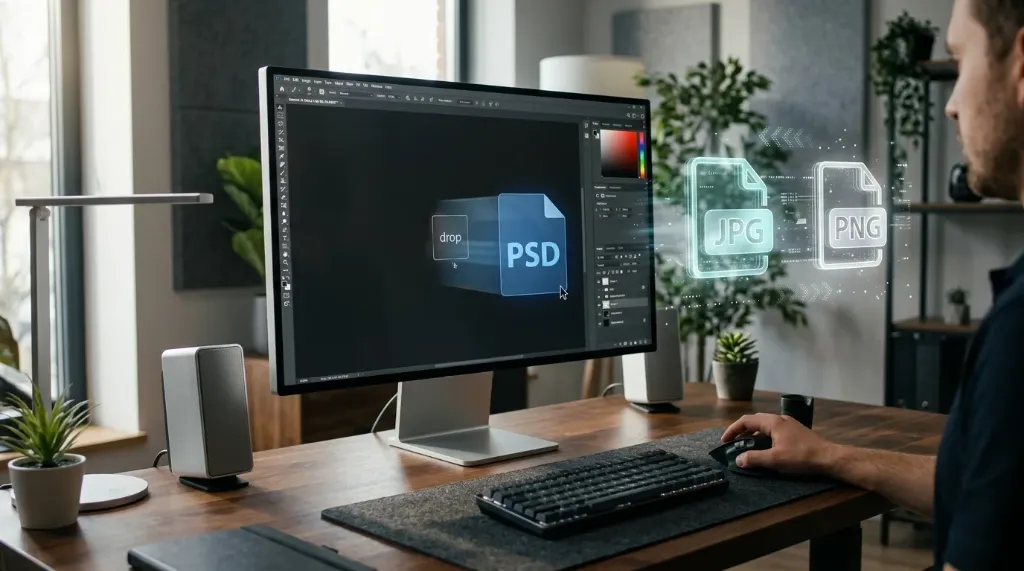
What Is a PSD File?
To understand what is a .psd file, it helps to know what the acronym stands for: Photoshop Document. Adobe Systems created this proprietary raster file format specifically to support non-destructive editing in its flagship software. When an artist or designer works on a complex visual asset, they rarely want their adjustments permanently merged into a single background layer. They need the freedom to tweak a headline, change a background color, or soften a shadow hours, days, or months later.
This non-destructive capability is the true strength of what is a .psd file. Inside each document, visual elements live on separate, stacked layers. A single file can hold raster photos, editable text blocks, vector shapes, clipping masks, adjustment layers, and smart objects. Adjustment layers allow you to change brightness, hue, or contrast across the image without overwriting the original pixels below. Because all of these components remain isolated, what is a .psd file serves as the master editable project file for future design revisions.
What Is a PSD File Used For?
Because the format retains rich editing data, creative professionals rely on what is a .psd file across several visual industries:
- Photo Editing and Retouching: Photographers use PSD documents to perform detailed portrait retouching, color grading, and exposure adjustments on separate layers that can be modified at any time without degrading the original raw image.
- Graphic Design and Marketing: Designers build print collateral such as brochures, flyers, posters, and product packaging where typography, logos, and product photography must remain independently movable.
- Social Media Graphics: Marketing teams use PSD templates to maintain brand consistency. Team members can open a template, change the headline text and background photo, and export a fresh graphic in minutes.
- Website and UI/UX Mockups: Web designers frequently compose website hero sections, app banners, and user interface elements in PSD format to test layout combinations before handing assets off to front-end developers.
While modern dedicated vector tools like Figma and Sketch have become standard for UI screens, understanding what is a .psd file remains an indispensable skill whenever multi-layered raster manipulation, texture blending, and pixel-level control are needed.
How to Open a PSD File
When someone emails you a design or you download a web asset and need to inspect what is a .psd file, learning how to open a PSD file depends on whether you simply want to view the finished picture or actively edit its internal layers. Here are your primary choices:
1. Adobe Photoshop (Native Editor)
Adobe Photoshop is the official software designed for the format. Opening a file in Photoshop guarantees full compatibility with every layer style, clipping mask, smart filter, and adjustment layer. However, Photoshop requires a paid monthly Creative Cloud subscription. If you only need to view or convert a file occasionally, paying for an Adobe subscription is unnecessary.
2. Free Desktop Image Editors (GIMP, Paint.NET, Affinity Photo)
If you want a free desktop application for how to open a PSD file, GIMP (GNU Image Manipulation Program) is a respected open-source editor available on Windows, macOS, and Linux. GIMP can open PSD documents natively and display most raster layers. On Windows, Paint.NET can open PSD files when paired with a free third-party PSD plugin. Another commercial alternative is Affinity Photo, which offers a one-time purchase model and robust PSD import capabilities. Note that specialized Adobe proprietary features like live smart filters may render as rasterized layers in third-party editors.
3. Browser-Based Online Editors (Photopea)
If you do not want to install any software on your computer, Photopea is a capable browser-based image editor that runs directly in Google Chrome, Firefox, or Safari. It parses Photoshop layer hierarchies accurately, lets you toggle layer visibility, edit text layers, and export assets on any operating system, including Chromebooks.
How to Convert PSD to PNG
While a PSD file is ideal for creative work on your desktop, it is virtually unusable for web publishing or social media. Web browsers cannot display PSD files natively, mobile phones cannot preview them without third-party apps, and email clients struggle with their massive file sizes. That is why understanding how to convert PSD to PNG is essential for everyday file sharing.
PNG (Portable Network Graphics) is the preferred output format because it supports transparent backgrounds through an alpha channel and uses lossless compression. If your design features an isolated product photo or a transparent logo badge, exporting to PNG preserves that clean transparency without forcing an unwanted white background.
However, you must understand what happens during the conversion process: all separate layers are flattened into a single composite raster image. You receive a lightweight, universal graphic that anyone can open, but you lose the ability to edit individual text boxes or tweak layer adjustments later.
Need to convert a Photoshop document right now?
You do not need to install heavy desktop software or pay for an Adobe subscription. Use our free online PSD to PNG converter to convert your Photoshop documents into high-resolution transparent PNG images in seconds. Because processing occurs entirely within your browser, your files remain completely private and never leave your device.
If you already have Adobe Photoshop open on your computer, you can also complete this conversion manually. Simply click File in the top menu, choose Export, and select Quick Export as PNG, or use Save a Copy and select PNG from the format dropdown.
PSD vs PNG: What Is the Difference?
When comparing PSD vs PNG, remember that they serve entirely different stages of the visual workflow. A PSD file is a working construction workspace; a PNG is a finished, exported asset.
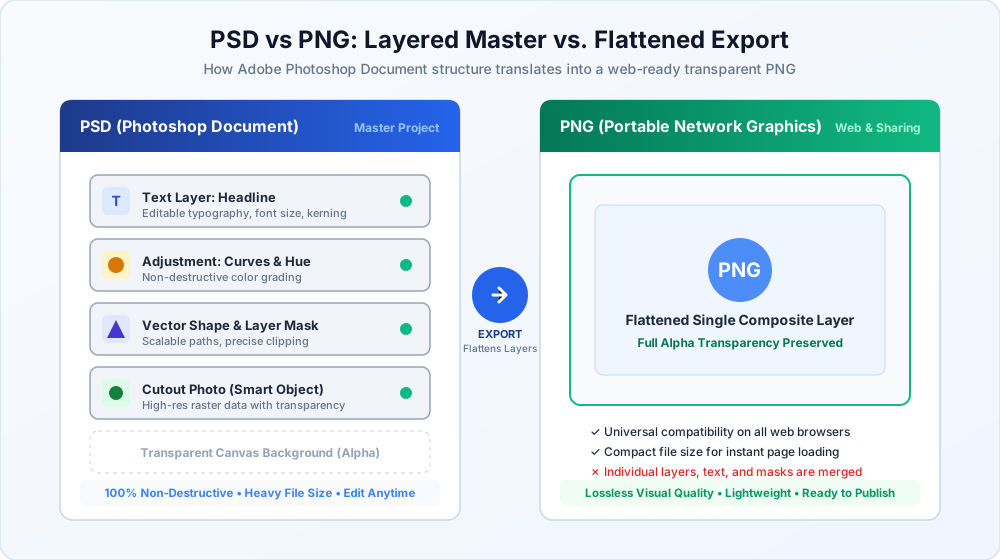
| Feature | PSD (Photoshop Document) | PNG (Portable Network Graphics) |
|---|---|---|
| Primary Purpose | Master working project file for editing | Finished graphic for web, mobile, and sharing |
| Layers & Editability | Multi-layered (editable text, masks, smart objects) | Single flattened layer (destructive / locked) |
| Transparency Support | Yes (supports independent alpha masks per layer) | Yes (full 8-bit or 24-bit alpha transparency) |
| Typical File Size | Heavy (often 50 MB to 2 GB or more) | Lightweight (often a few hundred KB to 5 MB) |
| Software Compatibility | Photoshop and compatible graphics editors only | Universal (all browsers, operating systems, apps) |
| Common Use Cases | Creating posters, photo retouching, UI design | Website logos, icons, blog images, app assets |
Neither format is universally superior. In the comparison of PSD vs PNG, professional designers always maintain the original PSD as their master source of truth, and export PNG files whenever an asset must be shared with clients, uploaded to a website, or placed into a document.
Can You Convert a PSD File Without Losing Quality?
When working with client assets, people often ask what is a .psd file going to look like after export, and whether converting it reduces image sharpness.
Because PNG uses lossless Deflate compression, the visible pixel quality of your graphic remains 100 percent intact during conversion. Every crisp edge, subtle color transition, and translucent drop shadow looks identical to how it rendered on your canvas in Photoshop. Unlike lossy formats like JPG that discard subtle color data to save space, PNG keeps every visible pixel intact.
However, you must distinguish visual quality from project editability. While you do not lose visible pixel fidelity, you permanently lose the multi-layer architecture that defines what is a .psd file. Once flattened into a PNG, you can no longer click into a text layer to fix a typo or hide a background shape. For this reason, always keep your original PSD safe on your hard drive and treat the PNG as a read-only export.
Frequently Asked Questions
1. What is a PSD file?
A PSD file is the native layered file format created by Adobe Photoshop. It stores visual graphics across independent layers, preserving editable text, adjustment layers, transparency masks, and vector paths so designers can modify their work non-destructively.
2. How do I open a PSD file without Photoshop?
You can open a PSD file without Photoshop using free desktop software like GIMP, Paint.NET (with a free PSD plugin), or Affinity Photo. You can also use Photopea, a free web-based editor that opens and edits PSD files directly inside your internet browser without requiring any software installation.
3. How do I convert PSD to PNG?
To convert PSD to PNG without Adobe software, upload your file to the AllToolsNow PSD to PNG converter. It processes your file locally in your browser, flattens the layers while keeping transparency intact, and downloads a high-quality PNG image in seconds.
4. Does converting PSD to PNG preserve layers?
No. Converting a PSD to PNG flattens all visible layers into a single raster image. The resulting PNG will display transparency if your canvas had a transparent background, but individual text boxes, vector shapes, and adjustment layers cannot be separated or edited.
5. Is PSD better than PNG?
Neither format is inherently better because they serve different purposes. PSD is superior for creating and editing complex graphics because it keeps layers intact. PNG is superior for sharing, publishing on websites, and displaying on mobile devices because it is lightweight and universally supported.
Final Thoughts
Understanding what is a .psd file makes managing graphic design assets straightforward. When you receive a .psd document, treat it as a master blueprint containing all the editable ingredients of a design. When you need to send that graphic to a colleague, publish it on a blog, or upload it to social media, converting it to PNG gives you the perfect balance of crystal-clear transparency and universal compatibility.
For fast, private conversions without installing heavy desktop software, the free online image tools at AllToolsNow make it easy to manage, resize, and convert your files directly in your web browser.