
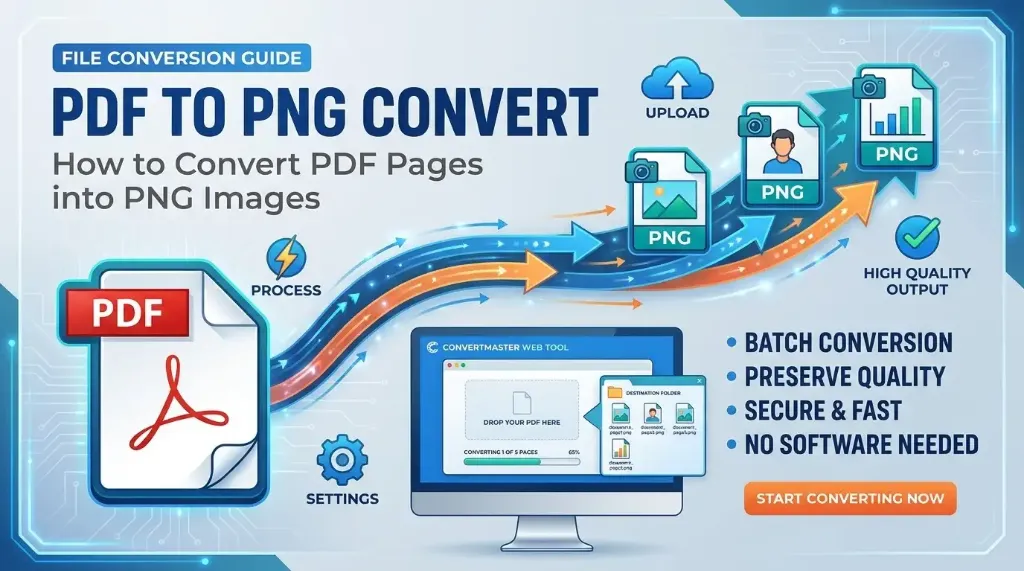
1. What PDF to PNG Conversion Actually Means
To understand why you would convert a PDF into a PNG, it helps to examine how the two formats represent visual information. A PDF (Portable Document Format) is not a simple flat picture. It is a structured compound document container that holds vector mathematical curves (PostScript bezier lines), embedded TrueType and OpenType font glyphs, layout coordinate systems, interactive forms, and compressed raster image objects.
When a PDF viewer displays a page, it executes an internal rendering pipeline that evaluates mathematical coordinate formulas to draw text strokes and vector borders onto the screen at whatever magnification level you choose.
By contrast, a PNG (Portable Network Graphics) file is a raster bitmap. It represents an image as a fixed two-dimensional grid of discrete picture elements (pixels), where each pixel contains red, green, blue, and alpha (RGBA) values.
Performing a PDF to PNG conversion is essentially a process of rasterization:
- Vector Evaluation: The rendering engine parses the PDF page's content stream, calculating vector curves and character kerning based on the specified target dimensions.
- Virtual Canvas Painting: The evaluated shapes and embedded bitmaps are painted onto an in-memory HTML5 Canvas buffer at a defined pixel density (such as 144 DPI or 216 DPI).
- Lossless Bitstream Encoding: The raw canvas pixel grid is compressed using the two-stage PNG pipeline: predictive row filtering followed by DEFLATE compression. Every subtle line, corner, and contrast edge is preserved bit-for-bit without discarding visual data.
2. When to Choose PNG Over JPG for PDF Extraction
One of the most frequent dilemmas when extracting pages from a PDF is deciding between PNG and JPG. While our companion tool for converting PDF to JPG is ideal for multi-page digital magazines and photographic portfolios where compact file size is paramount, PNG is the unquestioned gold standard for documents containing text, diagrams, and sharp line boundaries.
Here is how the formats fundamentally differ when rendering PDF pages:
| Feature | PNG (Portable Network Graphics) | JPG (JPEG Standard) |
|---|---|---|
| Compression Type | Lossless (DEFLATE) — zero data lost | Lossy (DCT) — discards high-frequency detail |
| Text Edge Sharpness | Perfect; razor-sharp letter borders | Prone to mosquito noise & blurring around glyphs |
| Transparency Support | Full 8-bit Alpha Channel (transparency) | None (all backgrounds must be opaque) |
| Line Art & Blueprints | Flawless single-pixel grid preservation | Smudged lines along 8×8 pixel blocks |
| File Size (Text & Line Graphics) | Extremely compact due to uniform color regions | Often larger or distorted because of block encoding |
| Ideal Document Types | Invoices, contracts, architectural CAD, certificates, infographics | High-resolution photo albums, scanned color brochures |
The Decisive Advantage of Transparency (Alpha Channel)
Unlike physical paper, digital PDF documents often have no solid backdrop defined. The white background you see on your screen is frequently a default rendering choice applied by your viewer.
When you export to PNG using our PDF to PNG converter, you can choose to preserve this transparent canvas. This allows logo vector sheets, transparent signature stamps, or diagram components extracted from a PDF to be placed directly into design tools like Figma, PowerPoint, or Adobe Illustrator without any white rectangle clipping the underlying artwork.
3. Resolution, DPI, and Pixel Dimensions: Ensuring Crisp Outputs
Because vector lines in a PDF have no intrinsic pixel grid, the sharpness of your resulting PNG depends directly on the rasterization scale factor chosen during conversion. In standard desktop printing, resolution is measured in Dots Per Inch (DPI).
A standard US Letter page measures 8.5 × 11 inches, while an international A4 page measures 8.27 × 11.69 inches. When translated into pixels, the chosen scale factor dramatically influences both image clarity and memory usage:
-
1.0x Scale (Standard Screen / 72 DPI): Produces approximately
595 × 842 pixelsfor an A4 page. This is lightweight (typically 100 KB to 250 KB per page) and well-suited for fast email previews or mobile thumbnail feeds. However, small 9pt footnotes may appear fuzzy. -
2.0x Scale (High-Resolution / 144 DPI - Recommended): Produces approximately
1190 × 1684 pixelsfor an A4 page. This doubles the linear pixel density and quadruples total pixel area. Text is pin-sharp on high-density Retina and 4K monitors, making it the ideal setting for website publication and executive slide decks. -
3.0x Scale (Ultra-Sharp / 216 DPI): Generates approximately
1785 × 2526 pixelsper page. This setting captures minute fine-print annotations, complex CAD schematics, and micro-typography. While file sizes are larger (often 1.5 MB to 4 MB per page), you can easily optimize them using an in-browser image compressor before final deployment.
Technical Tip: Higher DPI values require proportionally more browser RAM during canvas rendering. For a 50-page document, rendering at 2.0x provides the optimal balance of crisp typography, responsive processing speed, and safe memory consumption.
4. Step-by-Step: How to Convert PDF to PNG Online
Converting your PDF pages into lossless PNG images on AllToolsNow takes just a few seconds and requires no software installation or registration. Follow these four simple steps:
Upload Your PDF File
Navigate to the PDF to PNG Converter. Drag and drop your document directly into the upload area, or click "Choose PDF File" to select it from your computer or phone. Files up to 100 MB are supported.
Configure Resolution and Page Selection
Customize your output options in the settings bar:
- Pages to Convert: Leave set to All Pages to convert the full document, or select Specific Page / Range and enter custom pages (e.g.,
1for just the cover, or1-3, 5for selected sections). - Resolution: Select 2.0x (High-Res / 144 DPI) for high-definition monitor display, or 3.0x for maximum print detail.
- Background: Choose White for standard document presentation or Transparent to preserve vector cutout backgrounds.
Click "Convert PDF to PNG"
Click the primary conversion button. The client-side engine executes the rendering loop across each selected page, displaying real-time percentage progress and thumbnail cards as each page finishes rendering.
Download PNG Images or ZIP Archive
Each converted page card features an individual Download PNG button for instant saving. For multi-page documents, click Download All as ZIP to package every page into a single organized archive with zero waiting time.
Ready to Convert Your PDF?
Extract crisp, high-resolution PNG pages with complete privacy right inside your web browser.
Launch Free PDF to PNG Converter5. Common Conversion Obstacles and Technical Solutions
While in-browser conversion is seamless for the vast majority of standard documents, unusual PDF structures can occasionally cause visual discrepancies. Here is how to diagnose and resolve common conversion issues:
A. Password Protection and Encryption
PDF files secured with user passwords or restricted encryption flags cannot be parsed by JavaScript rendering libraries until decrypted. If you attempt to upload an encrypted file, the converter will display a security error. To convert it, unlock the document first using your native PDF viewer or a dedicated decryption tool before proceeding.
B. Black Backgrounds on Transparent Exports
A frequent complaint occurs when a converted PNG appears with a jet-black background in Windows Photo Viewer or older email clients. This is not a conversion error; it is a display artifact caused by viewers that lack alpha channel support. When an image contains transparent pixels and no underlying color layer, these viewers default to showing black. If your graphic is intended for standard viewing or printing, simply select White (Standard Paper) in the Background dropdown before clicking convert.
C. Non-Embedded Custom Fonts
When a PDF author saves a document without embedding font subsets, the viewing engine must substitute missing fonts with local system typefaces (such as Arial or Helvetica). This can cause text to wrap unpredictably. For critical graphics, ensure the author exports the original PDF with all font subsets embedded, or convert the text to outlines in their design software prior to export.
D. Managing Memory on Massive Multi-Page Documents
Attempting to render 150 pages simultaneously at 3.0x resolution can create gigabytes of raw pixel data in browser memory, leading to tab sluggishness. If you need to convert an extensive manual or book, convert pages in batches (e.g., pages 1–25, then 26–50) or use 1.0x/2.0x resolution settings.
6. Real-World Applications & Best Practices
Converting PDF to PNG solves critical workflow challenges across diverse business, academic, and creative disciplines:
- Architectural CAD & Engineering Schematics: Schematics with intricate electrical wiring, dimensional callouts, and tiny tolerances become unreadable if compressed with JPG artifacts. PNG preserves every line with single-pixel accuracy.
- Corporate Invoices & Receipts for Expense Systems: Automated Optical Character Recognition (OCR) systems perform significantly better on lossless PNG inputs because character contours remain sharp, avoiding misread numbers or skewed currency symbols.
- Digital Certificates & Diplomas: Embedding educational or professional credentials onto portfolio websites requires clean typography and optional background transparency for dark-mode interfaces.
- Slide Decks & Executive Presentations: Keynote and PowerPoint slide decks frequently require inserting vector data charts exported from PDF analytics reports. PNG ensures the charts remain crisp even when projected on large meeting room displays.
If your end goal is the opposite workflow—compiling a series of existing pictures into a single cohesive document—you can easily assemble them using our companion JPG to PDF Converter or reorder multiple documents with Merge PDF.
7. Frequently Asked Questions
Why should I convert a PDF to PNG instead of JPG?
PNG uses lossless DEFLATE compression, meaning text characters, fine line art, mathematical charts, and vector diagrams remain pin-sharp with zero blurriness or compression artifacts around contrasting edges. Furthermore, PNG supports true alpha channel transparency, allowing graphics to sit seamlessly over colored backgrounds.
Does converting PDF to PNG reduce image quality?
No. When rendered at standard (144 DPI / 2x scale) or ultra-sharp (216 DPI / 3x scale), vector glyphs and illustrations are rasterized into uncompressed pixel bitmaps without any compression loss. Unlike JPG, PNG preserves every pixel exactly as rendered.
Can I convert just one specific page from a multi-page PDF?
Yes. Using the page range options in our browser-based tool, you can specify an individual page number (such as page 3) or a custom range (such as 1-5). Only the requested pages are rasterized and made available for download.
How can I download all converted PNG pages at once?
When converting multi-page documents, the tool packages all rendered PNG files into a single, organized ZIP archive directly inside your browser memory. Clicking "Download All as ZIP" downloads all pages at once without triggering multiple browser download prompts.
Are my sensitive PDF documents uploaded to external cloud servers?
No. All PDF parsing, canvas rasterization, and ZIP archiving take place 100% locally within your client web browser via Mozilla PDF.js and Web APIs. Your confidential files, contracts, invoices, and bank statements never leave your computer.
Why does my exported PNG have a black background instead of white?
PDF documents do not technically define an opaque white background page; they specify an invisible, transparent page boundary. When exported with transparent background settings and viewed in basic image viewers that lack transparency support, transparent areas may render as black. Selecting "White (Standard Paper)" background in the settings bar guarantees a solid, crisp white page backdrop.