
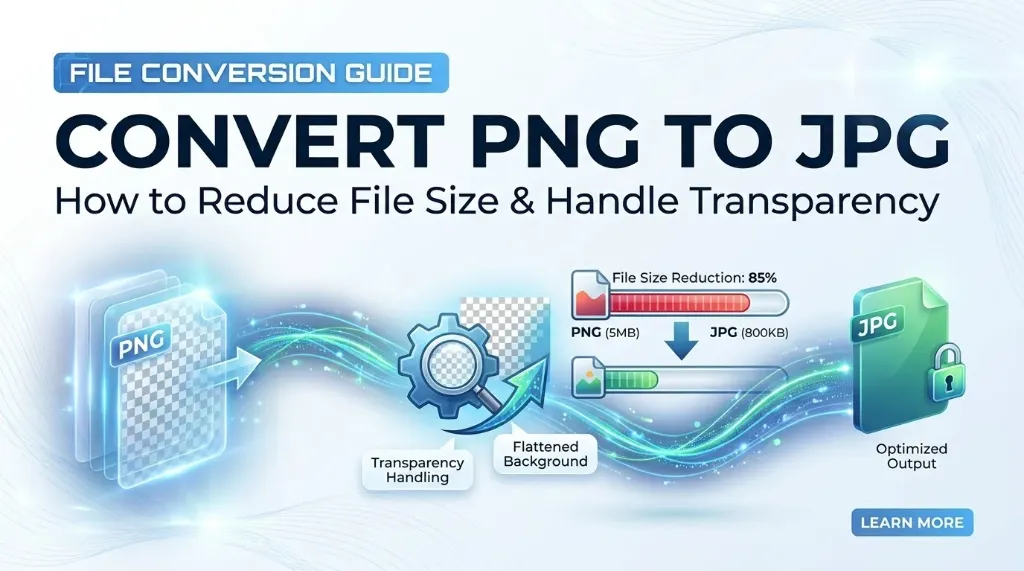
1. Why Convert PNG to JPG? The File Size Dilemma
Digital creators, web developers, and photographers frequently encounter the challenge of image bloat. When website owners and creators need to convert PNG to JPG images, it is usually because unoptimized PNG photos, the resulting file can easily exceed 5 MB to 15 MB.
To understand why this happens, look at how the underlying compression algorithms operate:
- PNG (Portable Network Graphics): Designed around lossless DEFLATE compression. It analyzes rows of pixels and compresses repeated pixel patterns without discarding a single piece of color data. While this is magnificent for simple graphics, computer screenshots, and geometric UI badges, photographs contain millions of continuous color variations, textures, and noise. Because there are few identical repeating pixels, PNG compression cannot significantly shrink photographic images.
- JPG (Joint Photographic Experts Group): Specifically engineered for photographs and real-world imagery. JPG relies on the Discrete Cosine Transform (DCT) and perceptual chroma subsampling. It transforms pixel blocks into spatial frequency waves, selectively discarding minute color transitions that the human eye is biologically incapable of distinguishing.
The result? When you convert PNG to JPG, complex photographs routinely drop from 5 MB down to 750 KB—an impressive 85% reduction in file size. On web pages, substituting heavyweight PNGs with lightweight JPGs directly improves Core Web Vitals, slashes Largest Contentful Paint (LCP) times, and prevents mobile visitors from abandoning slow-loading pages.
2. Handling Transparency: Why Backgrounds Turn Black and How to Fix It
The single biggest frustration users encounter when converting images between formats is the dreaded "black box glitch": you upload a clean PNG logo or product cutout with a transparent background, convert it, and end up with a dark, muddy black rectangle where the transparency used to be.
The Technical Reason Behind the Black Background
PNG files utilize a 32-bit RGBA color space. This consists of three 8-bit color channels (Red, Green, Blue) and an additional 8-bit Alpha channel that controls pixel opacity from 0 (completely transparent) to 255 (completely opaque).
JPG, on the other hand, is strictly a 24-bit RGB format. It possesses no alpha channel whatsoever. Every pixel in a JPG must have a concrete, opaque color value.
When primitive conversion tools attempt to save a transparent PNG directly as a JPG, they simply truncate or strip the alpha channel. In digital color representation, an uninitialized or zeroed pixel defaults to RGB(0, 0, 0)—which is pure black.
How AllToolsNow Prevents the Black Background Glitch
Our PNG to JPG Converter uses an intelligent HTML5 Canvas compositing pipeline. Before the image is encoded into JPEG format, the engine paints a crisp, opaque white backdrop (RGB 255, 255, 255) across the canvas, then blends the transparent PNG layers seamlessly on top. Semi-transparent shadows and antialiased edges blend smoothly into the white background with zero dark halos or harsh borders.
3. Step-by-Step: How to Convert PNG Images to JPG Online
When you choose to convert PNG to JPG online with AllToolsNow, the process is instantaneous, secure, and requires no complicated software installation. Follow this simple 3-step walkthrough:
Upload Your PNG File(s)
Visit the PNG to JPG Converter. Drag and drop your PNG images directly into the designated dropzone, or click "Choose Files" to browse from your device. You can upload single files or batch convert multiple images simultaneously.
Instant In-Memory Conversion
Click Convert to JPG. The browser immediately renders the image onto a virtual canvas, resolves any transparent regions into an immaculate white background, and encodes the pixels into an optimized JPEG bitstream in under 5 milliseconds.
Download Your Optimized JPGs
Download each converted JPG image individually or click "Download All" to save your entire converted collection at once. Your files remain 100% private and never touch an external server.
Ready to Convert Your PNG Images?
Convert transparent or bulky PNGs into lightweight, high-speed JPGs with flawless white backgrounds in your browser.
Launch Free PNG to JPG Converter4. Preserving Visual Quality: Balancing Compression with Clarity
A common misconception is that when you convert PNG to JPG, the image will instantly look pixelated or blurry. In reality, JPEG quality exists on a continuous compression scale from 1% to 100%. Understanding this scale ensures you achieve the ideal balance between low file size and sharp visual fidelity:
- 100% Quality (Lossless Emulation): Disables almost all quantization steps. The resulting file is noticeably smaller than a PNG, but it retains minor mathematical artifacts without yielding optimal compression. Rarely recommended for web use.
- 85%–92% Quality (The Web Sweet Spot): The industry-standard balance. At 90% quality, subtle color gradients and micro-details remain sharp and clean to the naked eye, while the file size is reduced by 70% to 80% compared to the original PNG.
- 70%–80% Quality (Aggressive Web Compression): Ideal for ecommerce thumbnails, mobile apps, or high-volume news blogs where millisecond load times are essential.
- Below 60% Quality: Severe compression artifacts (ringing halos around high-contrast edges and visible 8×8 pixel macroblocks) become obvious. Generally unsuitable for professional portfolios.
If your converted JPG requires additional byte shaving for strict CMS upload limits, you can run it through our dedicated image compressor to fine-tune quality without manual Photoshop exports.
5. Format Decision Guide: When to Keep PNG vs. When to Use JPG
Should you always convert PNG to JPG? Definitely not. Each format has distinct architectural strengths. Use the decision matrix below to choose the right format for your project:
| Use Case / Content Type | Recommended Format | Key Technical Reason |
|---|---|---|
| Photographs & Real-World Landscapes | JPG | Saves 80%+ file size; smooth tonal transitions conceal lossy compression. |
| Company Logos & App Icons | PNG | Requires alpha channel transparency to sit over diverse website backgrounds. |
| Software Screenshots & UI Mockups | PNG | Sharp text and straight window borders remain crisp without mosquito noise. |
| Blog Hero Banners & Feature Images | JPG (or WebP) | Accelerates Largest Contentful Paint (LCP) and mobile browsing speeds. |
| Architectural Schematics & Blueprints | PNG | Lossless preservation of single-pixel lines and micro-callouts. |
| Ecommerce Product Gallery Photos | JPG | White background photos look pristine while loading instantly on mobile networks. |
If you ever need to reverse this conversion—such as preparing a JPEG photo for transparent masking in Photoshop or a graphic design project—you can convert it right back with our JPG to PNG converter.
6. Frequently Asked Questions
Why do transparent areas turn black when converting PNG to JPG?
PNG supports a 32-bit RGBA color model containing an 8-bit alpha transparency channel. JPG is strictly a 24-bit RGB format with no concept of transparency. When an image converter strips the alpha channel without filling the empty space, undefined transparent pixels often default to pure black (RGB 0,0,0). Our PNG to JPG converter solves this automatically by compositing transparent pixels onto a clean, solid white canvas before JPEG encoding.
How much file size can I save by converting PNG to JPG?
For photographic images, portraits, and complex illustrations containing millions of continuous color gradients, converting from PNG to JPG typically reduces file size by 70% to 85%. A 5 MB photographic PNG frequently shrinks to 600 KB–800 KB as a high-quality JPG.
Does converting PNG to JPG cause visible quality loss?
When using an optimal compression quality setting between 85% and 92%, the human eye cannot detect the mathematical loss in photographic imagery. High-contrast line art, screenshots, and small typography are better preserved in PNG, whereas photographs look indistinguishable in JPG.
Can I convert a JPG back to PNG later?
Yes, you can easily convert a JPG to PNG using our JPG to PNG converter. However, converting back will not restore previously deleted alpha transparency or recover fine photographic details discarded during lossy compression.
Are my images uploaded to external servers during conversion?
No. AllToolsNow executes all image processing, pixel compositing, and JPEG encoding directly within your client browser using HTML5 Canvas and native Web APIs. Not a single byte of your photos or graphics is ever uploaded to a remote server.
Which format is better for website page speed and SEO?
JPG is significantly better for photographic website hero banners, blog illustrations, and ecommerce catalogs because smaller file sizes dramatically accelerate Largest Contentful Paint (LCP) and reduce bandwidth usage. PNG should be reserved for brand logos, UI icons, and assets requiring transparent backgrounds.